Daily use
Probes
Add your probe thermometers and check each one in iced and boiling water every 30 days, so every reading comes from a probe you trust.
Updated
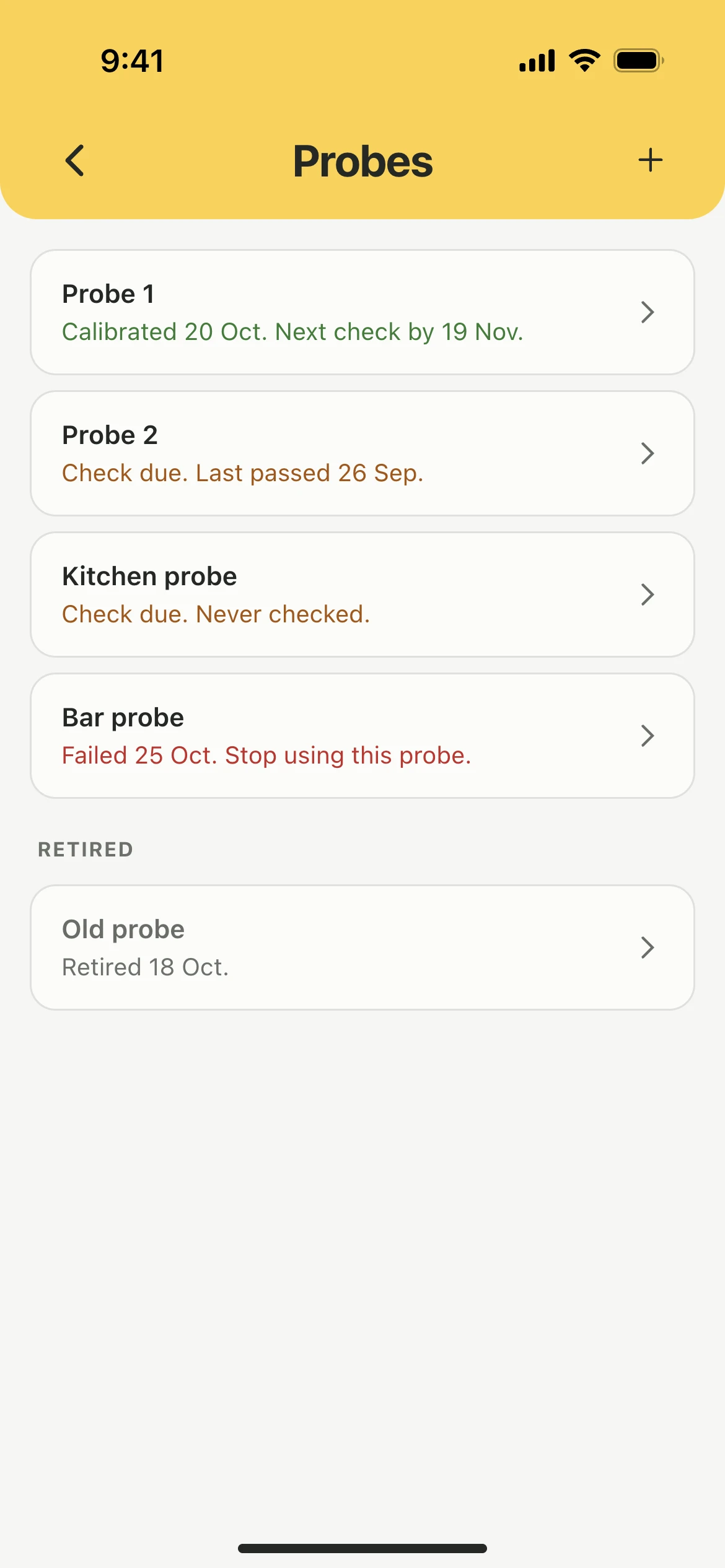
Add a probe
- Open Settings → Probes.
- Tap +.
- Give it a name, such as Probe 1, and tap Save.
Owners and managers add probes. Each one needs a check before use.
Check a probe
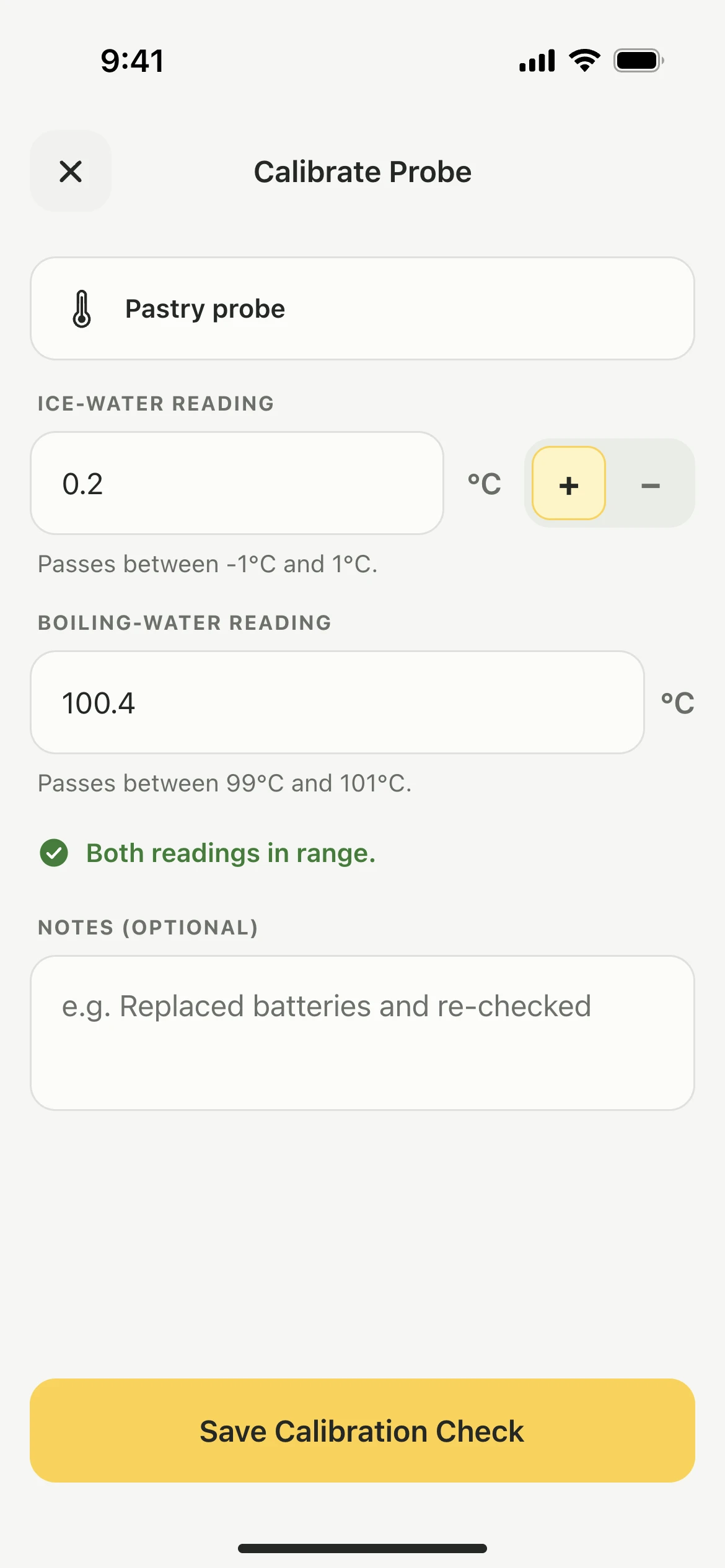
- Open Settings → Probes and tap the probe.
- Tap Record Calibration Check.
- Put the probe in iced water and enter the reading. Tap − for a reading below zero.
- Put it in boiling water and enter that reading.
- Tap Save Calibration Check.
A probe passes between -1°C and 1°C in iced water, and between 99°C and 101°C in boiling water. Check each probe every 30 days.
Good to know
- Anyone on the team can check a probe.
- A probe that fails shows in red. Stop using it until it passes a new check.
- A saved check cannot be changed. If you entered it wrong, record a new one.
- To rename or retire a probe, open it and tap the pencil. A retired probe keeps its history.
- Your PDF report lists every check. See Export a report.