Training
Assign a course
Owners and managers assign a course at admin.getlemon.app: choose the course, tick the people who should take it and add a date to finish by.
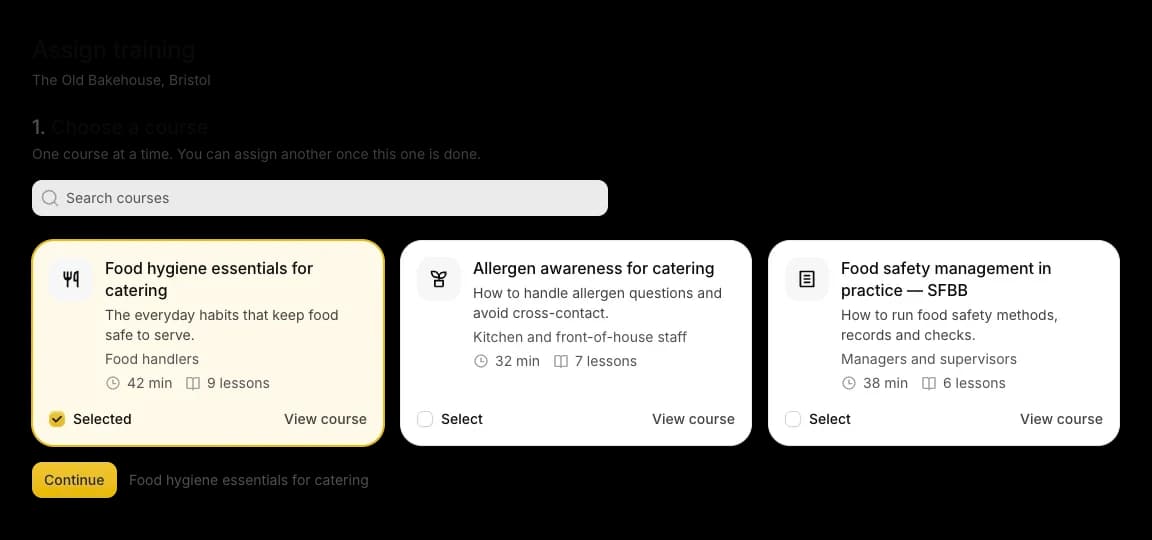
Steps
- Open admin.getlemon.app in a browser and sign in with your Lemon details.
- Check that the kitchen named at the top is the right one.
- Choose a course, then select Continue.
- Tick the people who should take it, then select Continue.
- Add a Finish by date if you want one.
- Select Assign training.
The course is waiting under Training in their Lemon app. Assigning it does not send an email, so tell them it is there.
Good to know
- One course at a time, to as many people as need it.
- Training is part of the one Lemon plan and of the free trial, so there is no extra cost per person or per course.
- The first time, Lemon may ask which country the kitchen is in: England, Wales or Scotland. That decides which edition of the food safety management course your team gets, because Scotland follows CookSafe rather than SFBB.
- The web admin uses the same email and password as the app. Your kitchens and your team are already there, so there is nothing to set up first.
- Someone missing from the list? The web admin shows the team from the Lemon app. Invite them in the app under Settings → Team → Invite someone, and once they have accepted, refresh the web admin. See Invite your team.
Updated