Training
Check training progress
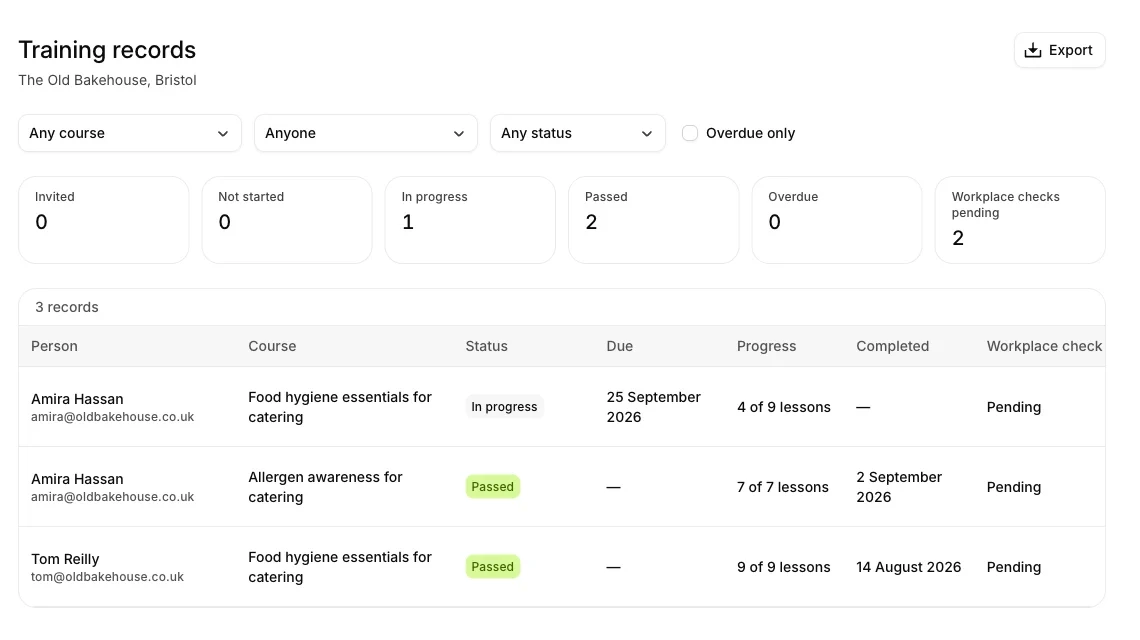
See who has not started, who is part way through, who has passed and who is overdue in the web admin, and open each completion certificate.
Steps
- Open admin.getlemon.app in a browser and sign in with your Lemon details.
- Select Records.
- Filter by course or by person, or tick Overdue only.
- Select a name to open that person's record.
Their record shows every course they have been assigned, the date they passed, and a link to each completion certificate.
Workplace checks
A certificate shows what someone has learned. A workplace check records that a manager has watched them put it into practice in your kitchen.
Once you have seen it done, open the person's record and select Record workplace observation. Nobody can sign off their own check.
Good to know
- The counts along the top show who has not started, who is part way through, who has passed and who is overdue against their Finish by date. Someone with no date is never counted as overdue. The last count, Workplace checks pending, is passed courses that still need a workplace check signed off.
- Select Export at the top of Records, then Export CSV, to download the training records as a CSV file. It is handy when an inspector asks about staff training.
- A completion certificate is not an accredited or regulated qualification. See Staff training.
- Records are for owners and managers. Staff see their own courses in the app. See Take a course.
Updated