Getting started
Share one tablet with your team
Keep one tablet or phone in the kitchen for the whole team: each person taps their own name to save a check, so every record still shows who did it.
Updated
What it is for
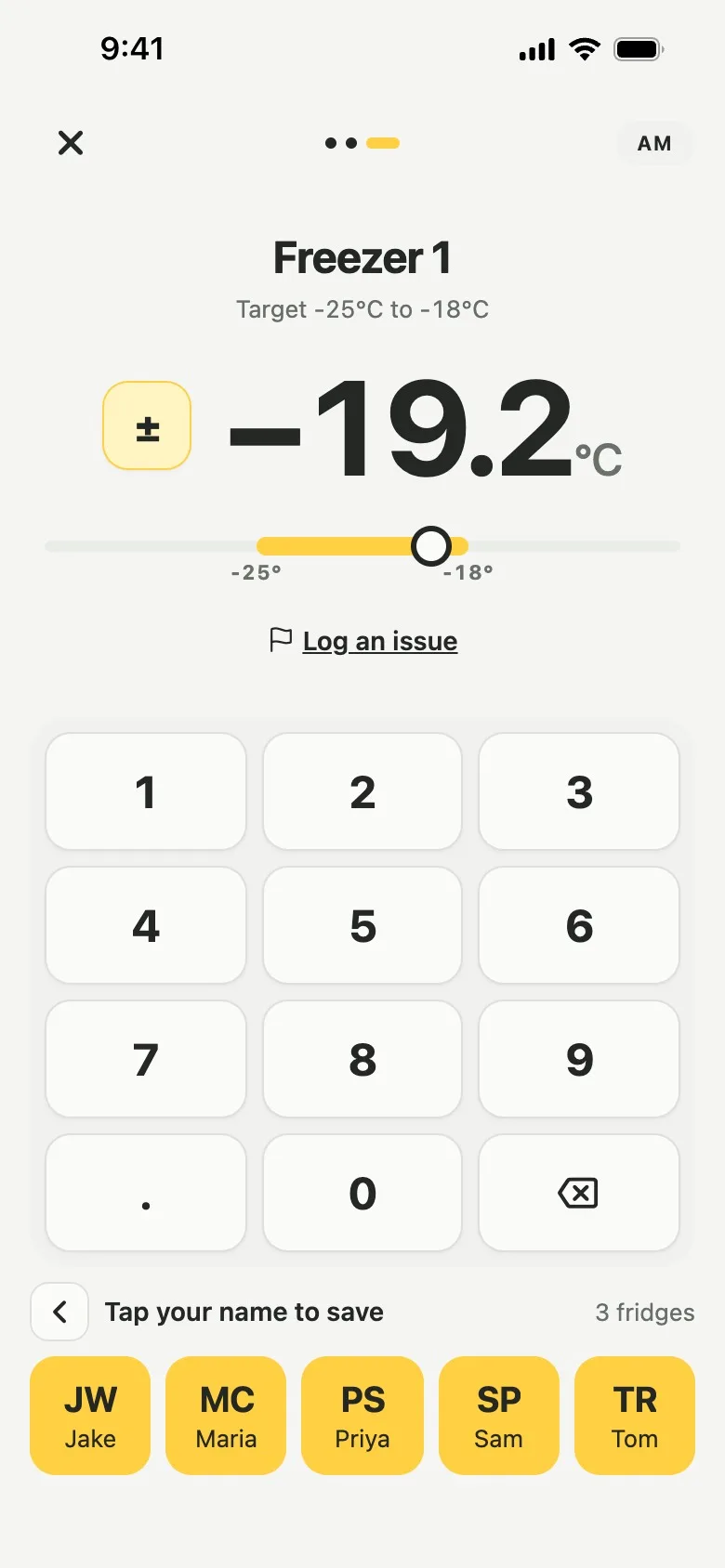
Some kitchens keep one tablet or phone on the wall for everyone. On one login, every check would carry that login's name. Switch on Shared device for it and the save button becomes a row of your team's names: each person taps their own name to save, so every record still shows who did the check.
Set it up
- Invite the tablet as its own Staff login, with an email address the kitchen can open. See Invite your team.
- Open the invite on the tablet. Under Your name, give the login a name such as Kitchen iPad.
- Signed in as an owner or manager on your own phone, open Settings, then Team, and tap the tablet's login.
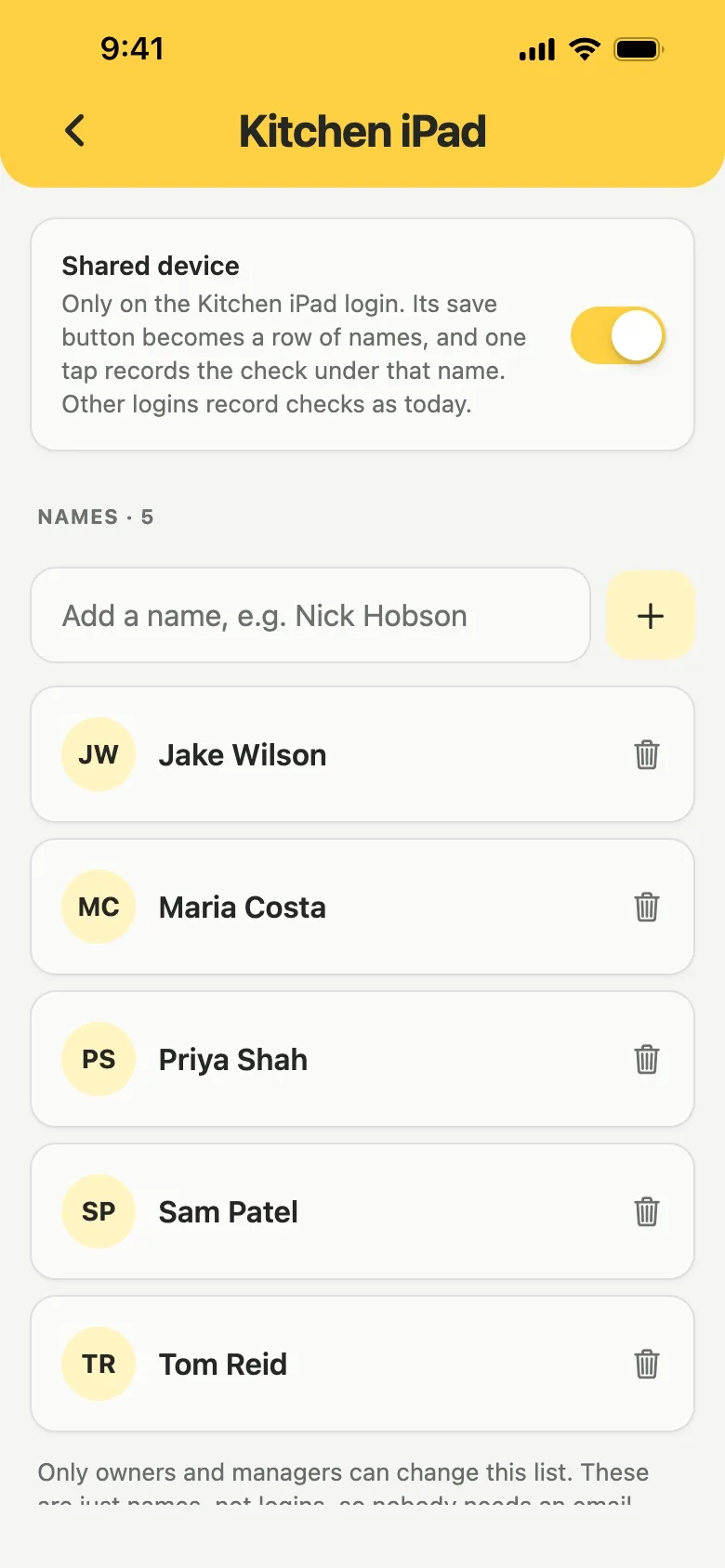
- Tap Shared device.
- Type a name, such as Nick Hobson, and tap +. Add everyone who records checks on the tablet.
The first name switches Shared device on, and the Team list shows Shared device with the number of names under that login.
Record a check on it
- Fill in the check as usual.
- Where the save button was, tap your own name under Tap your name to save.
Lemon shows Saved as and your name. It works the same way for fridge rounds, food checks, deliveries, probe checks, checklists and issues. The names stay grey until the check is ready to save.
What your records show
Each record keeps the name that was tapped. In your PDF report the person's name has On and the login's name under it, for example On Kitchen iPad, and the report explains what that means. See Export a report.
Good to know
- It works on Staff logins only, so nobody holding the tablet can change settings or the names. Owners and managers set it up and change the names.
- The names are not logins, so nobody needs an email. A shared device holds up to 40 names, listed A to Z.
- Removing a name never changes checks already recorded under it. Every other login records under its own name, as before.
- Do not assign training courses to the shared login. Courses and certificates belong to one person, so each person needs their own login for training. See Assign a course.
- It needs the latest version of the app. Lemon installs updates while it is open, so open the app on the tablet if the names do not show yet.