Account
Help and support
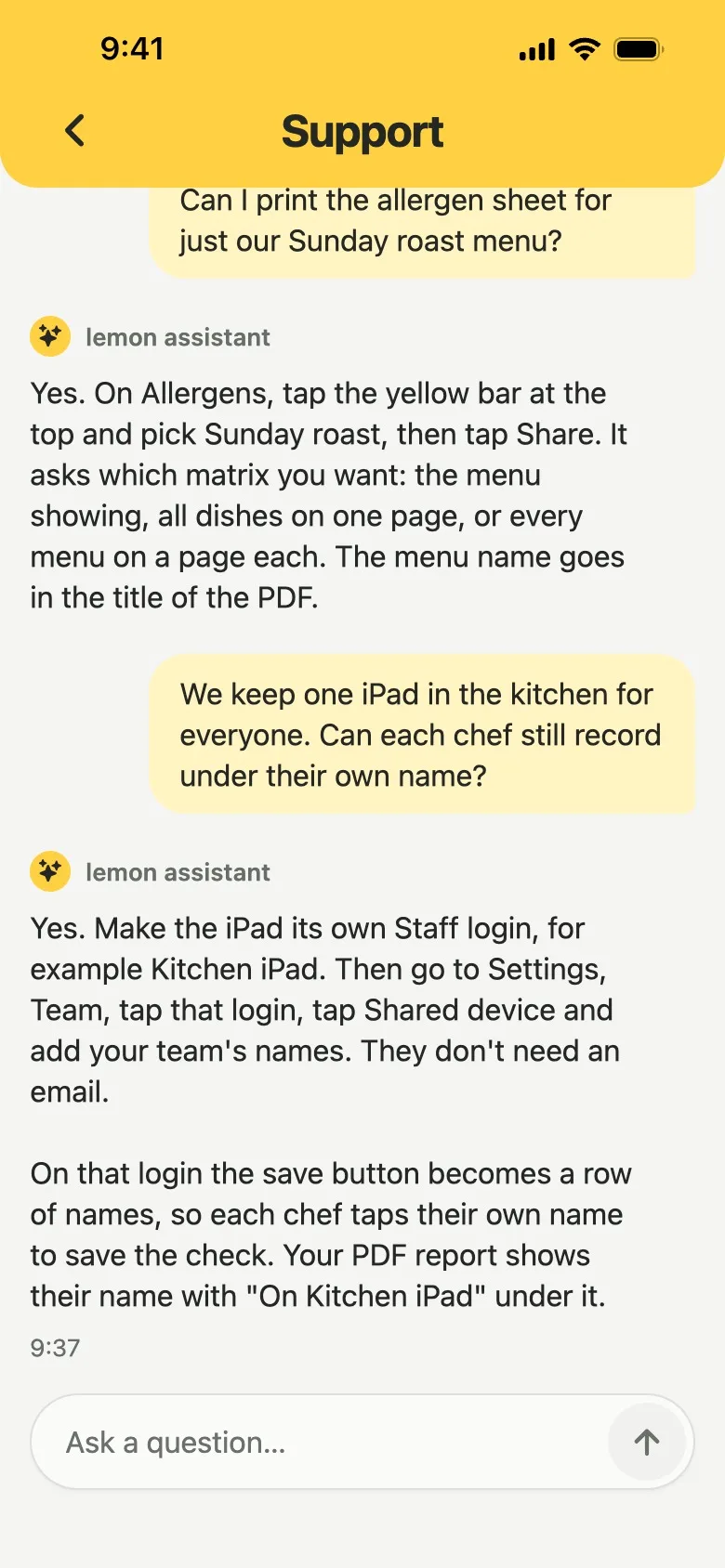
Chat with Us in the app answers common questions straight away, and anything else goes to the team in Edinburgh and Tallinn, who reply in the same chat.
Updated
Steps
- Open Settings, then Chat with Us.
- Type your question and send it, or tap one of the questions under Try asking.
Lemon answers common questions straight away. If yours needs a person, the chat shows Waiting for the lemon team. You do not have to wait there: the reply comes into the same chat, and Chat with Us in Settings shows New reply until you read it.
Send photos or files
- In Chat with Us, tap + beside the message box.
- Choose Camera, Photos or Files.
- Add a line saying what it is, and send.
Up to 10 at a time, 25 MB each. Anything you send with a photo or file goes straight to the team, and their reply comes in the same chat. Files such as a PDF or a spreadsheet can be sent from a browser today, and from the phone apps in a later version. Until then, a photo of the sheet works everywhere. To have the team set up your kitchen from your paper records, see Let us set up your kitchen.
Good to know
- If a message does not go, the chat keeps it and shows Try again, so nothing you typed is lost. Sometimes the team answers by email instead, and the chat says so.
- Lemon installs updates while the app is open. The version you are on is at the bottom of Settings, which helps when you ask for help.
- You can also email support@getlemon.app.
- The conversation stays with your account, so you can pick it up in a browser or on any phone you sign in on.
- For pricing, keeping records digitally and how the trial works, the FAQ on the website is a good first stop.